Overview
Items within a task are distributed among all users. The automatic option allocates an equal portion of items to each user, whereas the manual option provides greater control. As the task is actively being worked on by annotators, you have the flexibility to redistribute and balance the remaining items among annotators once more. Quality tasks (e.g., consensus, honey pot, qualification) are available only in the distribution method.
You can redistribute items to the assignees based on the specific context of their workload by using a Metadata Key or Value, or by employing a DQL query.
The items that do not meet the criteria will not be listed for redistribution and will remain with the current assignee.
Reassign Items
When a task is active, changes in the workforce can occur. Use this option to reassign an assignment from one annotator to another.
Inactive users
Inactive users are grayed out and are not available for redistribution, but are available for reassignment. You can view an inactive message next to the user who is no longer in the project.
Distribution Task Reassignments
Changes in team structure when using distribution-based tasks use the reassignment and redistribution actions. For example, if an assignee leaves the project and work needs to be reassigned to someone else.
Add Contributors to an Assignment
Open the Human Tasks page from the left-side menu.
Find the task and click on the three-dots.
Select Edit from the list.
Select the 5. Assignments section from the left-side menu.
Select available users and add them into the Assigned Users list.
Click Apply Reassignment.
Redistribute Tasks \ Assignments
To remove a specific assignment and have its items distributed among active assignees. For example, if an assignee leaves the project:
Redistribute items based on the Metadata or DQL query
You can now redistribute items based on the Metadata or DQL query by using Redistribution Settings.
.png)
Open the Human Tasks page from the left portal menu.
Click on the Three-dots and select Edit.
Select the Assignments section from the list.
Identify the user to be redistributed and click Redistribute. A Redistribute Assignment page is displayed.
Select Available Users from the list and add them to the Assigned Users list, if needed.
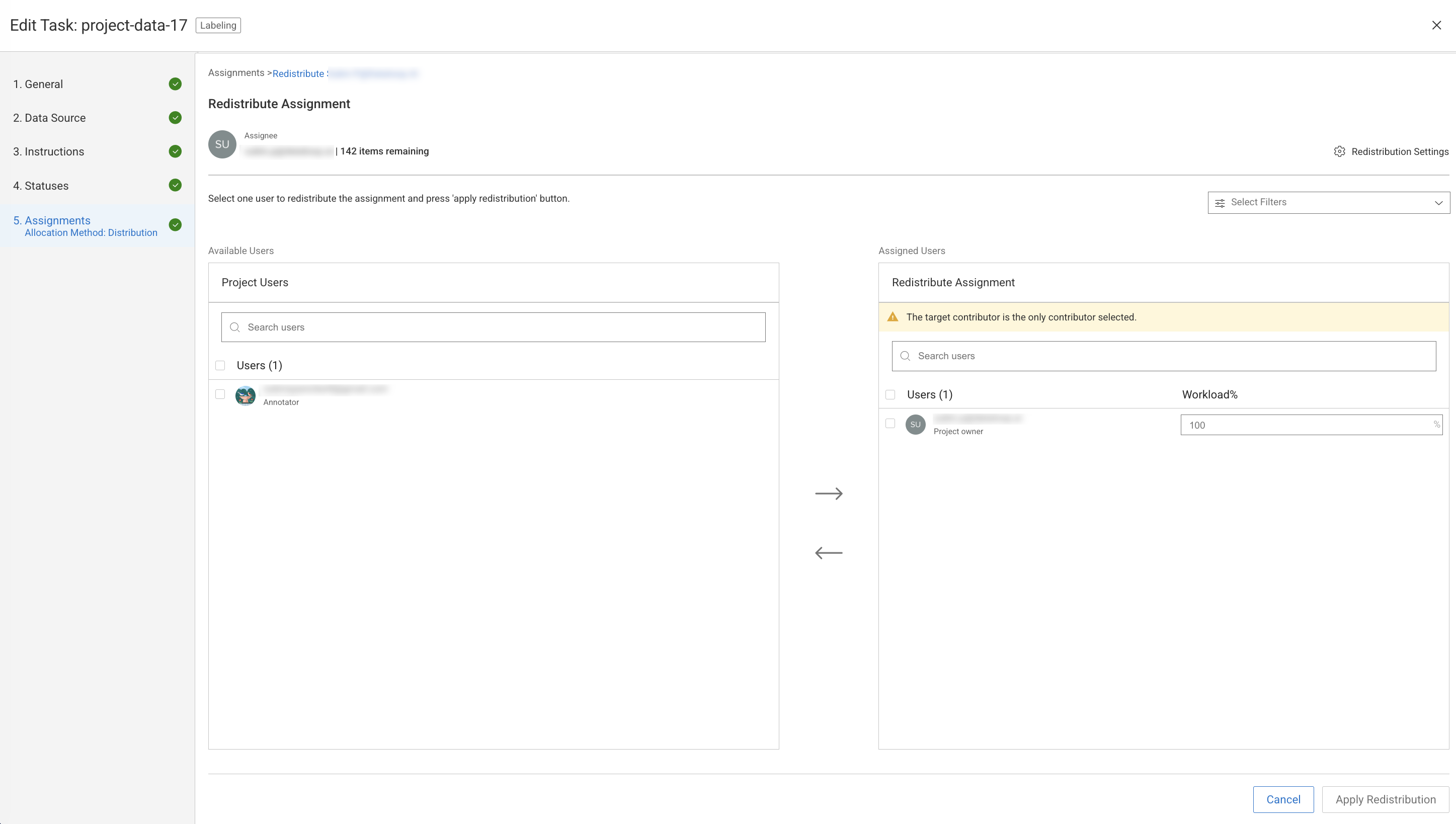
Click Redistribution Settings.
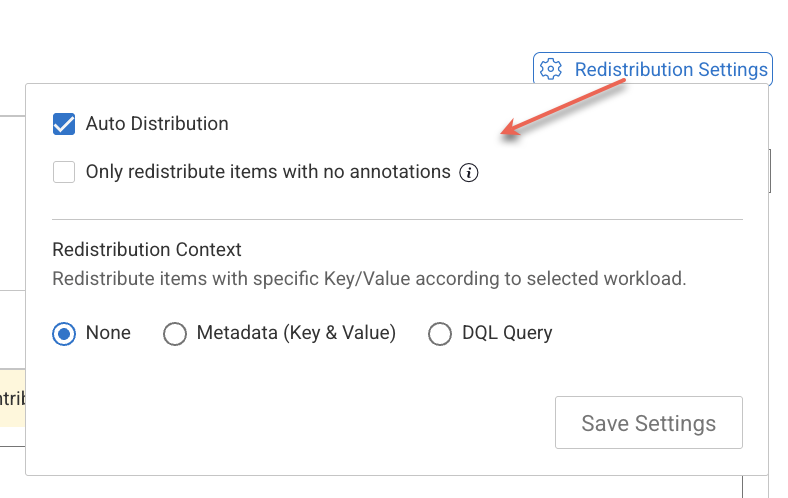
Edit the following options and click Save Changes:
Auto Distribution
Only redistribute items with no annotations: This option is to keep the work already started in the original assignment and let the assignee complete it.
Redistribution Context: Redistribute items with a specific Metadata Key/Value or with a DQL Query. It redistributes items to the assignees based on the specific context of their workload.
Metadata Key/Value:
Data type: String or Number
Key and Value
DQL Query
Click Apply Redistribution.
Click Save Changes.
Reassign a Task
To remove a specific assignment and have its items distributed among active assignees. For example, if an assignee leaves the project:
.png)
Open the Human Tasks page from the left portal menu.
Click on the Three-dots icon and select Edit.
Select the Assignments section from the list.
Identify the user to be redistributed and click Reassign. A reassign page is displayed.
Click Select Assignee of the user you want to assign.
Click Apply Reassignment.
Edit Item Workloads
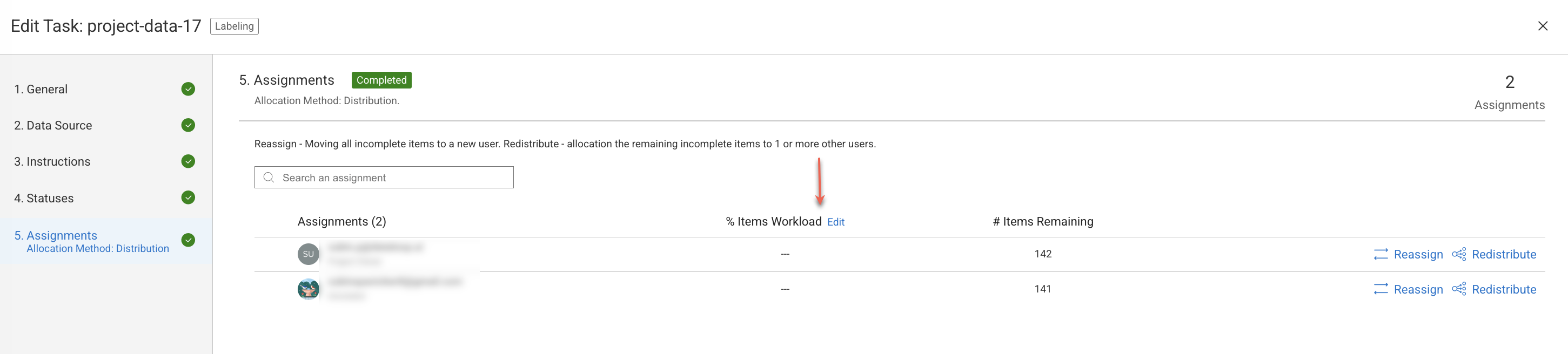
Edit Item Workloads of Pipeline’s Distribution Task: You have the ability to adjust the workload distribution of incoming pipeline items in distribution-type tasks generated by the pipeline ('My Task' node).
Note
Editing the allocation of incoming pipeline items will affect only future workload, with no impact on the current assignments.
To avoid future workload to inactive users, you can make the workload percentage to 0 by selecting manual distribution.
You cannot remove existing users from the list.
Open the Human Tasks page from the left portal menu.
Find the pipeline task and click on the three-dots.
Select Edit from the list.
Select the 5. Assignments section from the left-side menu.
Click on the Edit next to the % Items Workload column.
Select available users and add them into the Assigned Users list.
Click Confirm Workload.