Pulling Method
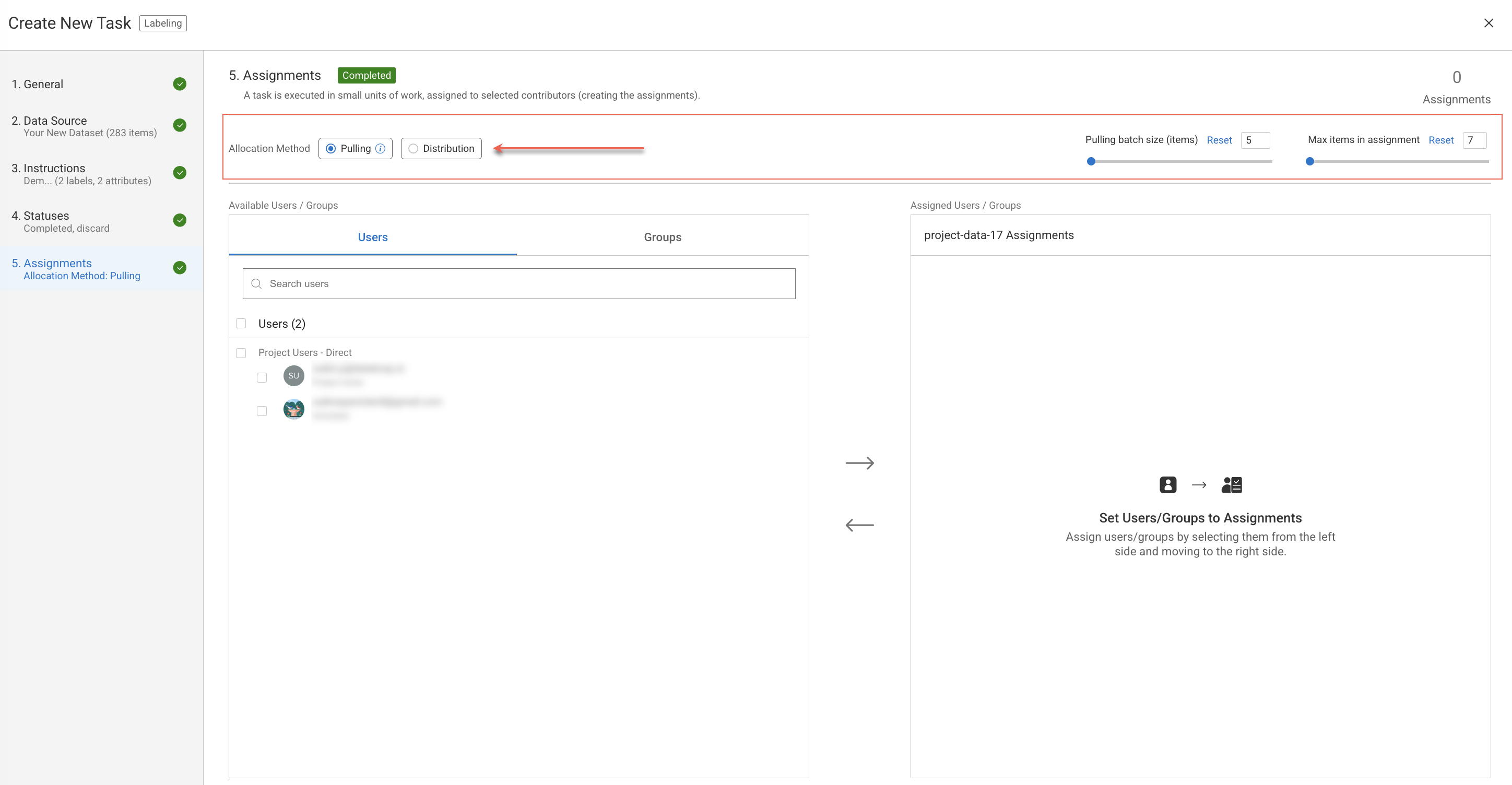
When creating an annotation or QA task and choosing the Pulling allocation method, the DDOE system will assign a batch of X items to each assignee at a time.
As assignees work on their tasks, the system will allocate new batches, each of the same size (batch size), whenever their pool of items requires replenishment. It's important to note that an assignee cannot have more than Y items pending in their assignment, as determined by the "Max items" setting.
Items that have not yet been assigned are maintained in a queue, and this queue cannot be interacted with or viewed by users. Pulling-based tasks offer greater control and flexibility during their execution, making it easier to adapt to changing requirements and needs.
Changing Team Size
Use the Edit option from a task's three-dots to add or remove users.
New users show as new assignments.
Removed users show as zeroed and locked assignments.
It allows you to track past activity and analytics.
Clear Batch Assignments
With Pulling-based tasks, you can clear a specific assignment from its items and put them back into the general queue. For example, if an assignee is not working on a specific day, you can clear the respective assignment from items without removing the user from the task. Learn more
Clear \ Load Batch Permissions
Annotators role or above can perform Clear \ Load Batch assignments.
Load Batch for Assignments
When the assignee is available, you can just load their assignment with a new batch, and they continue working with the new items they receive to the assignment. Learn more
Clear \ Load Batch Permissions
Annotators role or above can perform Clear \ Load Batch assignments.
QA Considerations
Items that have been completed by a user may undergo a Quality Assurance (QA) task at a later stage, and there could be an issue identified in one of the annotations. In such a scenario, the status of the item will be removed, and the item will be returned to the queue of the annotation task.
Items with issues will be specifically routed back to the original user who created the annotations, allowing them to address and rectify their work. These items with issues will receive priority in the queue and will be the first to be assigned again with the next batch pulled by the assignee.
Pulling Method in the Studio
Default Values
The below text and examples refer to default values of "batch size"=5 and "Max items"=7. The same behavior applies of course to any other values.
Initial Batch Load
When you first enter the Annotation Studio—whether for labeling or QA—the system automatically loads a batch of items. Based on our example settings, it loads the first 5 items, and the counter displays:
"Item 1 of 5".
Progressing Through a Batch
As you complete or approve items, the counter progresses accordingly. After completing 4 items, the counter will show:
"Item 5 of 5".
Completing the 5th item triggers the Studio to pull the next batch of 5 items, resetting the view to:
"Item 1 of 5".
Incomplete Batch Transition
If you do not complete the 5th item and try to move forward, the Studio loads additional items without removing the uncompleted item. You'll now see:
"Item 1 of 6".
This happens because:
1 item remains from the previous batch.
5 new items are pulled.
The total (6) is still under the Max Items limit (7 in our example).
Skipping Items
If you skip 2 items in the initial batch, the Studio still pulls 5 new items (since 5 + 2 = 7), and the counter updates to:
"Item 1 of 7".
However, if you skip 3 items, you're left with 3 pending. Pulling 5 new items would exceed the Max Items limit of 7, so the Studio does not load more. You must complete at least 1 item from the remaining 3 before a new batch can be pulled.