Overview
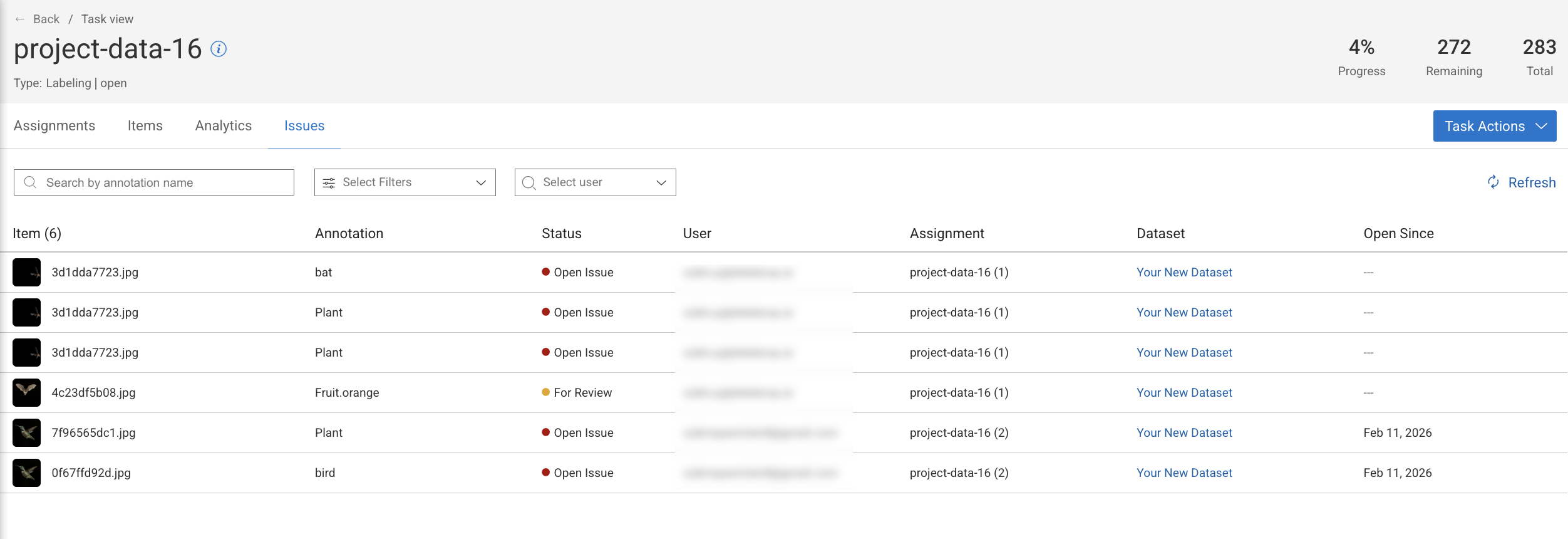
The issues tab of a task provides you with a list of issues with annotations related to the task. While reviewing Issues, you can use additional filters as the following:
Search by Annotation Name
Filter by Issue Status:
Open Issues: This displays the list of items with annotations that have open issues.
For Review: This displays the list of items with annotation that have issues corrected for review.
Approved: This displays the list of items with annotation issues that have been approved.
Who Can View Issues?
Each role has its own unique viewing option, as follows:
Annotation Manager can view all the issues in the tasks.
Annotator can view only issues related the assignment.
Issue Details
The Issues tab presents a table listing items with annotation issues, and it provides details for each item in the respective columns.
Item: This displays the thumbnail view of the item.
Annotation: This displays the label name used to annotate the item.
Assignment: This displays the name of the item's assignment.
Dataset: This displays the name of the dataset.
Status: This displays the current status of the issue.
Open Since: This displays the creation date of the issue.
Also,
Click on the More Details to view the details including, File Name, Item ID, Dataset ID, etc.
Clicking on the Annotation label, Assignment Name, and Dataset takes you to the respective page.
Double-clicking on the issue takes you to the respective type of annotation studio of the item.
Create an Issue
During a QA task, the QA tester, often the annotation manager, reviews the completed annotations for accuracy and quality. If issues are identified in specific annotations, the tester documents these problems by opening issues within the platform, ensuring that the concerns are tracked and addressed for resolution.
Note Assignment Warning
Some assignees may no longer be part of the project.
If you assign the note to a deactivated user, it will still be linked to their original labeling assignment.
Consider selecting an active user or handle the note directly from the assignment screen.
To create an issue,
In the Annotation Studio, during the QA review of an annotation task, hover over the annotation in the annotation list.
Click on the Open Issue (caution) icon. A red caution icon will appear on the annotation. This icon will also be displayed in the task list under a separate column.
To add a note to the issue, see the Create a Note article.