Labels
Labels are descriptive identifiers used to categorize or classify data elements—such as “Dog,” “Building,” or “Stop Sign.” They provide structured meaning to raw data (e.g., images, videos, or text), enabling its effective use in machine learning and AI workflows.
Purpose & Role in Ontology
Labels are defined within an ontology, ensuring:
Consistency in how data is annotated
Clarity across teams and projects
Uniformity that supports accurate and scalable annotation processes
This structured approach allows ML models to reliably interpret and learn from labeled datasets.
System Labels (Special Case)
Certain labels are automatically added by the system (for example, when OCR is enabled, a text label is created by default). These follow strict rules:
Disabled by default: System labels are initially disabled and cannot be activated or used unless specific system conditions are met.
Non-editable hierarchy: Cannot be reordered, have new sub-labels, or be deleted.
Customizable appearance: While the structure of a system label cannot be modified, its color and thumbnail can be changed for easier visualization in annotation tasks.
Add Labels
Navigate to Recipes from the lift-side menu.
Find and select the recipe from the list.
Click on the ⋮ Three Dots or Actions from the right-side panel.
Select Edit Recipe from the list.
Click New Label. A new field will be created.
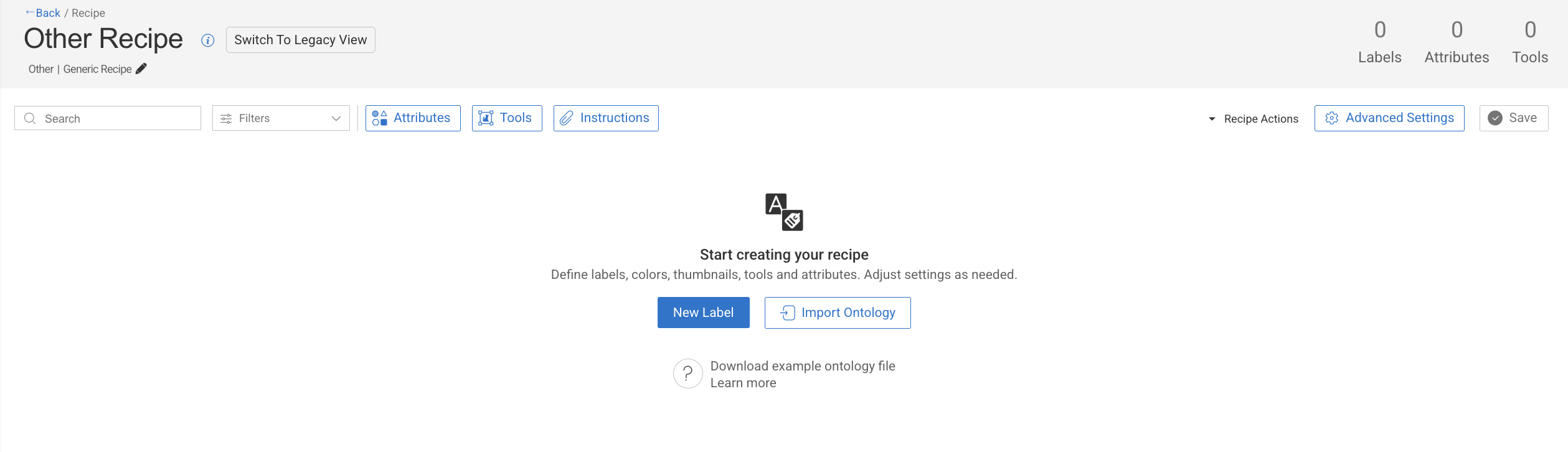
Provide a name for the label, and make other updates as follows:
Adding Thumbnails
Configure annotation tools list.
Add attributes
Updating the Advanced Settings, if required.
Click Save to save the changes.
Add Sub-Labels
Labels in the recipe have a Dot Name Spacing (dot-separated structure), allowing you to create tree-like label descriptions (sub-labels that are in a hierarchy with other labels). A well-defined labels hierarchy enables annotators to accurately classify annotations based on logical structure, with correlation with Dataloop advanced tools for labels-based search and filter on items and annotations level.
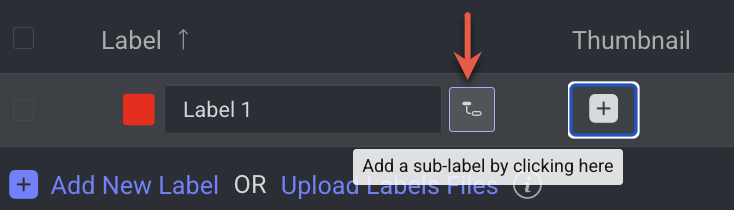
To add a Sub-Label:
Hover-over next to the label, and click on the Add sub-label icon.
Enter a name for the sub-label.
Press Enter key to save it. The sub-label will be added under the parent label.
Click on the Parent label.
Press
.(dot) orTabA sub-label field will be added under the parent label.
Provide a name for the sub-label and press enter. The sub-label will be created.
In New Label, For example, the parent label name Label-1 will be added to the name that you have given for the sub-label Sub-label-1: Label-1.Sub-label-1
Label_2
Label_2.M1
Label_2.M1.N1
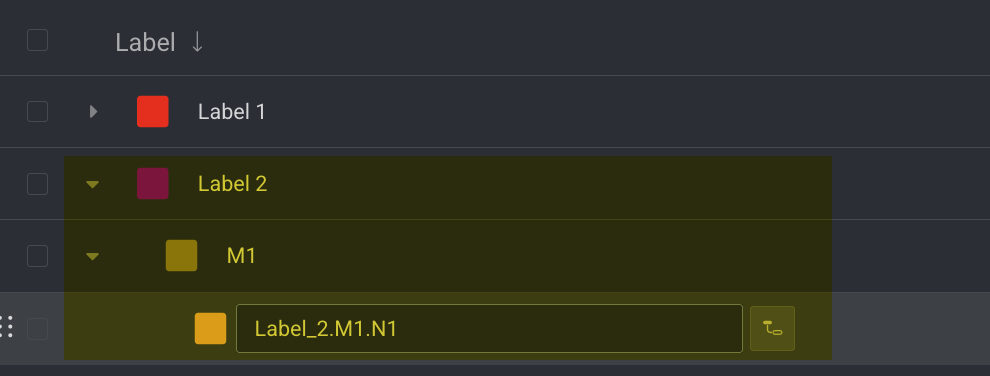
Click on the > icon of the parent label to expand and view the sub-labels.
Label Colors
Each label created within a recipe is automatically assigned a default color. For most annotation tools excluding Semantic Segmentation this color is purely visual and affects only the platform's user interface, helping annotators distinguish between different labels across images, videos, and other data types.
However, for the Semantic Segmentation tool, the label color directly influences the output mask. If your model expects specific RGB values for segmentation masks, ensure that the corresponding label colors are set to match those values.
.png)
Keyboard Shortcuts
Keyboard shortcuts make it faster to create and manage sub-labels in Recipes, allowing you to add, navigate, and organize labels without using the mouse.
Action | Keyboard Shortcut |
|---|---|
Add a sub-label (when creating a new label, below the parent) | Press |
Specify a sub-label by typing parent name + dot | Type |
Go back one level to the parent label (when name field is focused) |
|
Go back one level to the parent label (when name field is empty) |
|
Search and Filter Labels
Use the search field to find labels by label name.
.png)
You can also filter labels using the following criteria:
Classification
Bounding box
Polygon
Semantic Segmentation
Point/Pose
Polyline
Ellipse
Cuboid
Marker
3D Semantic Segmentation
3D Cuboid
3D Polyline
Audio Classification
Multiple Selection
Single Selection
Slider
Yes/No
Free Text
With Thumbnail
Without Thumbnail
Edit Labels
Navigate to Recipes from the lift-side menu.
Find and select the recipe from the list to edit.
Click on the ⋮ Three Dots or Actions from the right-side panel.
Select Edit Recipe from the list.
Search and find the label to make the changes on the following fields:
Changing the Label Name.
Add, modify, or delete labels and sub-labels
Adding Thumbnails
Updating annotation tools list.
Add, modify, or delete attributes
Updating the Advanced Settings, etc.
Click Save to save the changes.
Delete Labels
Dataloop allows you to delete single or multiple labels at a time.
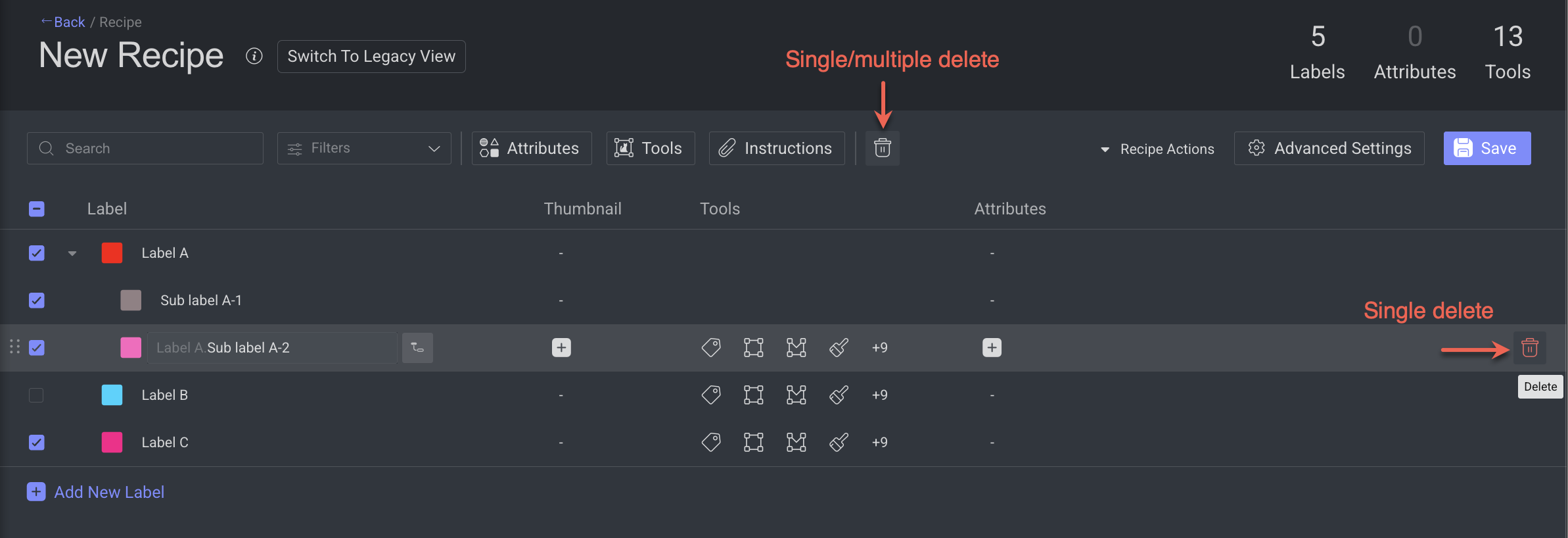
Open your recipe page.
Select one or more labels from the list to delete.
Click on the Trash icon from the top bar, or from the right-end of the row (for the single-label delete only). A confirmation message is displayed.
Click Delete to confirm the deletion. A successful message is displayed.
Changing Default Label Color
The default color assigned to a label can be changed. Click the colored square to select a color from the palette, or enter RGBA or HEX values.
.png)
Changing Color for Semantic Segmentation
Changing the color of the label used for semantic segmentation will impact only new annotations from that point onward. The color of existing annotations is saved on the mask in the item's JSON, and therefore won't affect all existing JSON files.
Learn more about the Semantic Segmentation tool.
Add Images as Label Thumbnails
Enhance your labeling workflow by adding image thumbnails to labels within your recipe. This allows annotators to select labels based on visual similarity between the item and its associated thumbnail — especially useful for retail and product classification tasks.
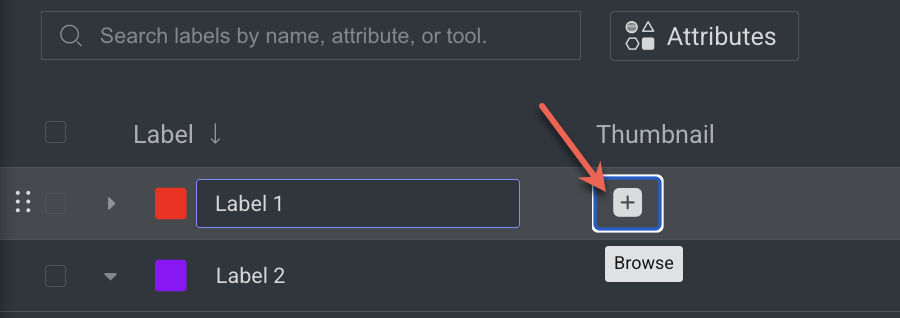
To add an image thumbnail to a label, click the “+” icon next to the label and choose an image from your local directory.
.png)
To remove a thumbnail:
Hover-over next to the thumbnail. A trash icon is displayed next to the Thumbnail.
Click on the Trash icon.
Click Remove to confirm.
Reorder Labels
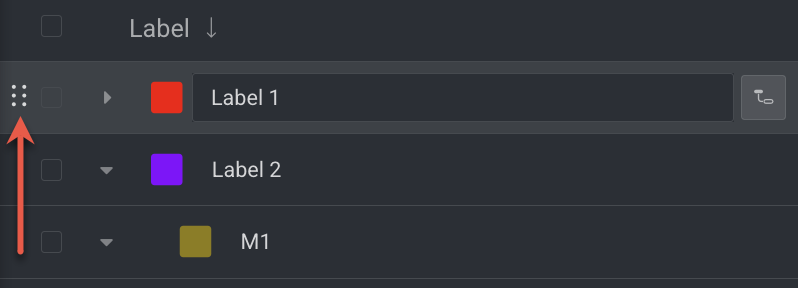
Labels can be reordered differently than creation order, to allow prioritizing and displaying at the top of the list during labeling tasks. To reorder labels, click on the Drag icon and drag & drop it to the desired position.
Updating the Ontology with a Label Thumbnail Using the SDK
The following code snippets demonstrate how to add a new label with a thumbnail and how to update an existing label to include thumbnail display data using the Dataloop SDK.
Adding a Label with a Thumbnail
import dtlpy as dl
dataset = dl.datasets.get(dataset_id="65f82c9fc26fd1bc97ea9915")
ontology = dataset.ontologies.list()[0]
ontology.add_label(label_name='dog', color=(34, 6, 231), icon_path=r"C:\Datasets\Dogs\dog.webp")
Updating an Existing Label with a Thumbnail
import dtlpy as dl
dataset = dl.datasets.get(dataset_id="65f82c9fc26fd1bc97ea9915")
ontology = dataset.ontologies.list()[0]
# Add label if not already existing
ontology.add_label(label_name='dog', color=(34, 6, 231), icon_path=r"C:\Datasets\Dogs\dog.webp")
# Create a label object with display data
label = dl.Label(tag='dog',
                 display_label='dog',
                 display_data={'displayImage': {'itemId': '65fa86e310864a269c607064',
                                                'datasetId': "65f82c9fc26fd1bc97ea9915"}})
# Update the label in the ontology
ontology.update_labels(label_list=[label], update_ontology=True)
Import Labels File
Click Recipes from the left-side menu.
Search and open the recipe from the list.
Download the Example File:
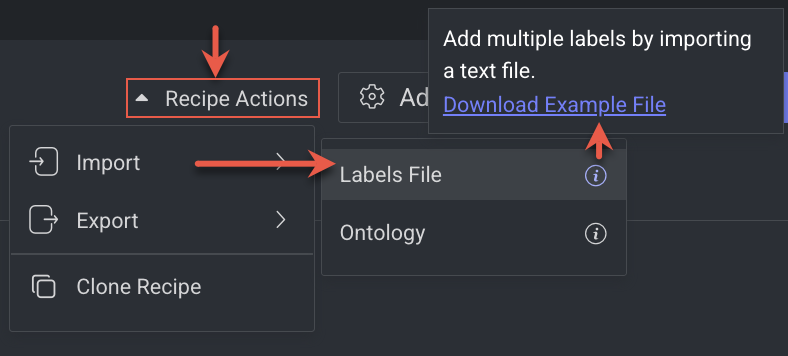
Click Recipe Actions → Import.
Hover over the Labels File’s Info icon.
Click on the Download Example File. A
.txtfile will be downloaded.Create your labels list according to this format.
Upload Labels File:
Click Recipe Actions → Import → Labels File.
Select the
.txtfile and click Open. The labels in the text file will be added to your recipe.
Attributes
An attribute of a label is a descriptive property or characteristic that provides additional information about an annotated object. Attributes help make annotations richer and more detailed, enabling more precise data for machine learning models.
Attributes are defined separately in the Recipe and can be linked (mapped) to:
A specific label (e.g., “Car” → attributes like Color, Make, Model), or
All labels, when they are relevant across multiple classes (e.g., Visibility, Quality Score).
For a vehicle label:
Color: Red, Blue, Black
Condition: New, Used, Damaged
Add Attributes
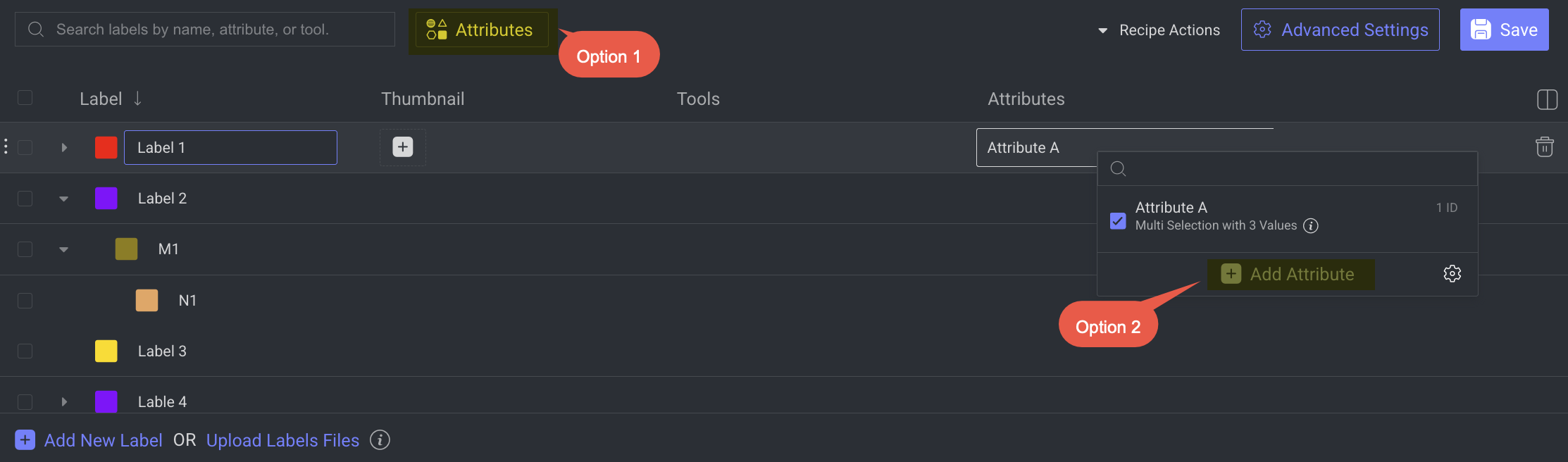
You can create attributes by using two ways. From the Labels main page (option 1) or single label level (option 2).
Go to the Recipes section.
Find and open the recipe from the list.
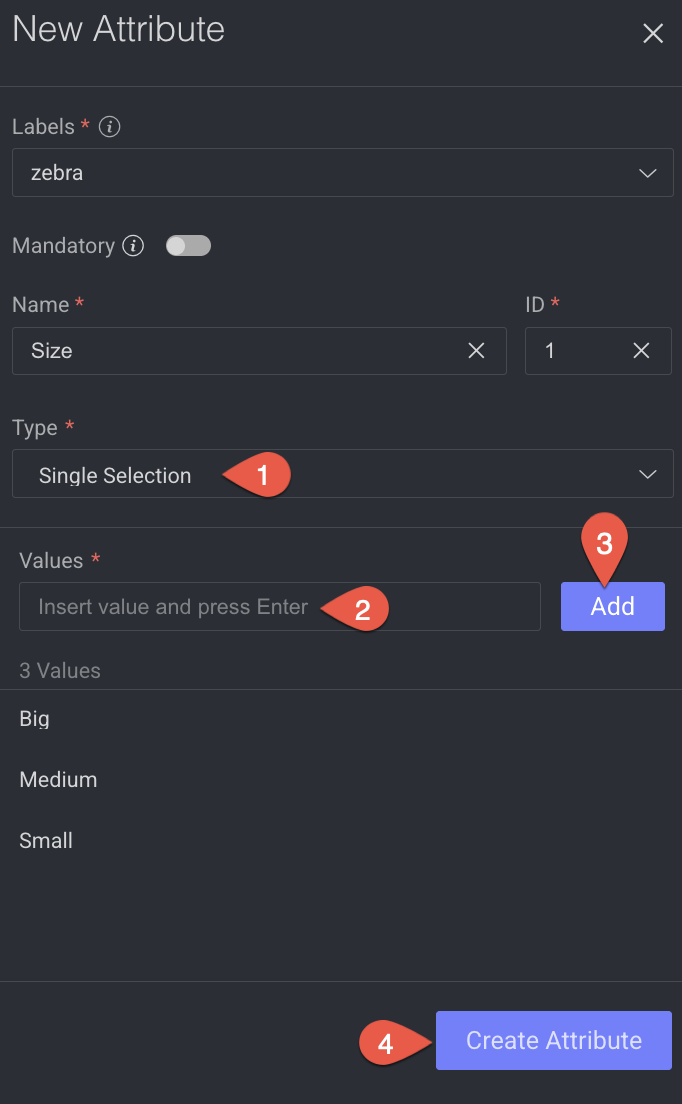
Click Attributes as shown above. A right-side panel will be displayed.
Labels: Select one or more labels from the list in which you need to add this attribute.
Mandatory: Enable to enforce annotators to answer attributes before moving to the next item. The feature is enabled from recipe instructions, and applies to any attribute set as ‘Mandatory’. While working in the Studio, mandatory attributes skipped will show with a red flag icon, requiring annotators’ attention. Mandatory attribute enforcement occurs only when working on a single item in the respective studio. Due to the nature of this work, mandatory attributes are not enforced when working in bulk from the Assignment Browser.
Name: Provide a name for the new attribute.
ID: A unique, auto-populated sequential value (editable). Used to reference this attribute in JSON exports and metadata. If edited, set it to an unused value.
Type: Where mapping to labels is done. The default applies any attribute to all labels, but individual selection can be done. By default, selecting a label applies the attribute automatically to all sub-labels.
Multiple Selection: It allows you to select multiple values while annotating. Add the multiple values in the Values field as shown below:
.png)
Single Selection: It allows you to select only a single value while annotating. Add the values in the Values field as shown below:
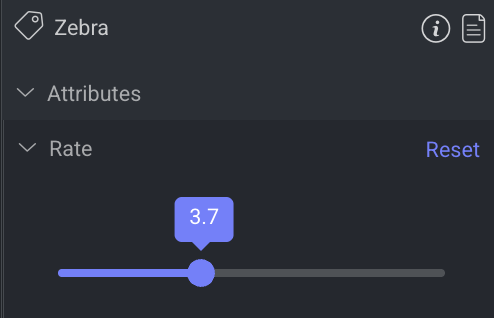
Slider: Selecting from a range of values, Minimum (, Maximum, and Step. (for example, between 1 and 10). Add the values in the Values field as shown below:
.png)
And the how you see as shown below:
Yes/No: It allows you to select Yes or No value (true or false).
Free text: A free text enter placeholder will be available for annotators to enter text to provide more information.
Click the Create Attribute to create the new attribute.
Search and Filter Attributes
Use the search field to find attributes by attribute type.
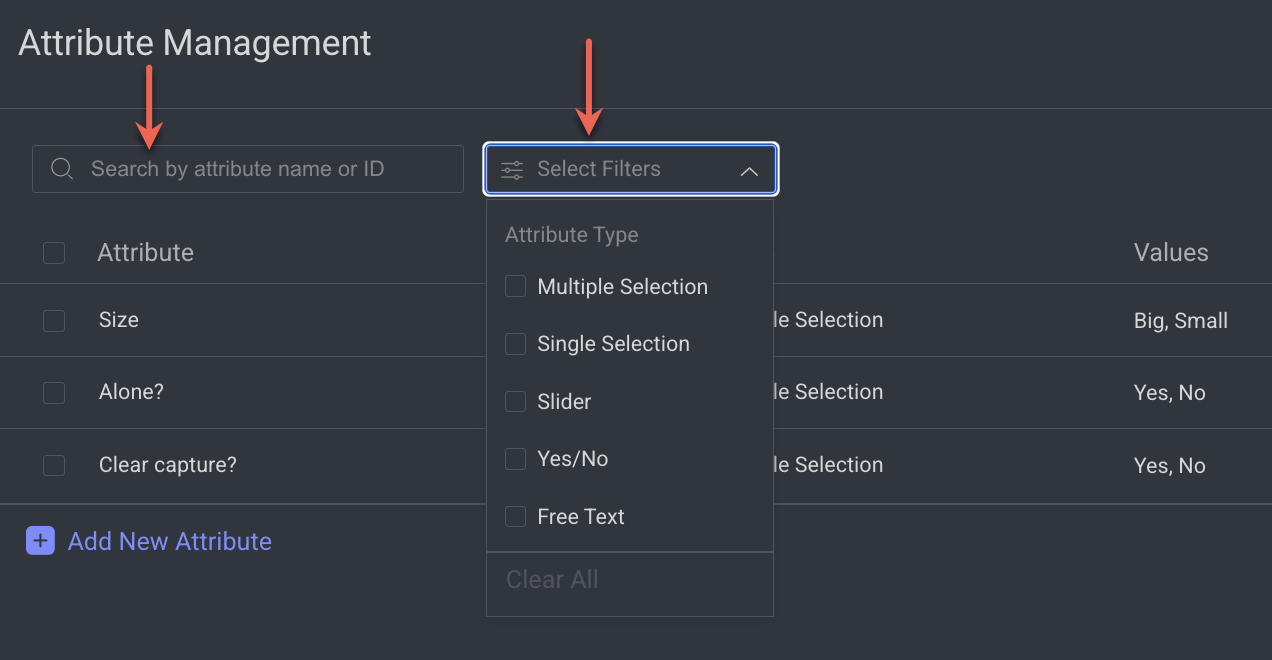
You can also filter labels using the following attribute type:
Multiple Selection: It allows you to filter attributes with multiple values
Single Selection: It allows you to filter attributes with a single value
Slider: It allows you to filter attributes with a numeric range (e.g., 1–10)
Yes/No: It allows you to filter attributes with binary (Yes/No) values
Free text: It allows you to filter attributes with free-text values.
Edit Attributes
Go to the Recipes section.
Find and open the recipe from the list.
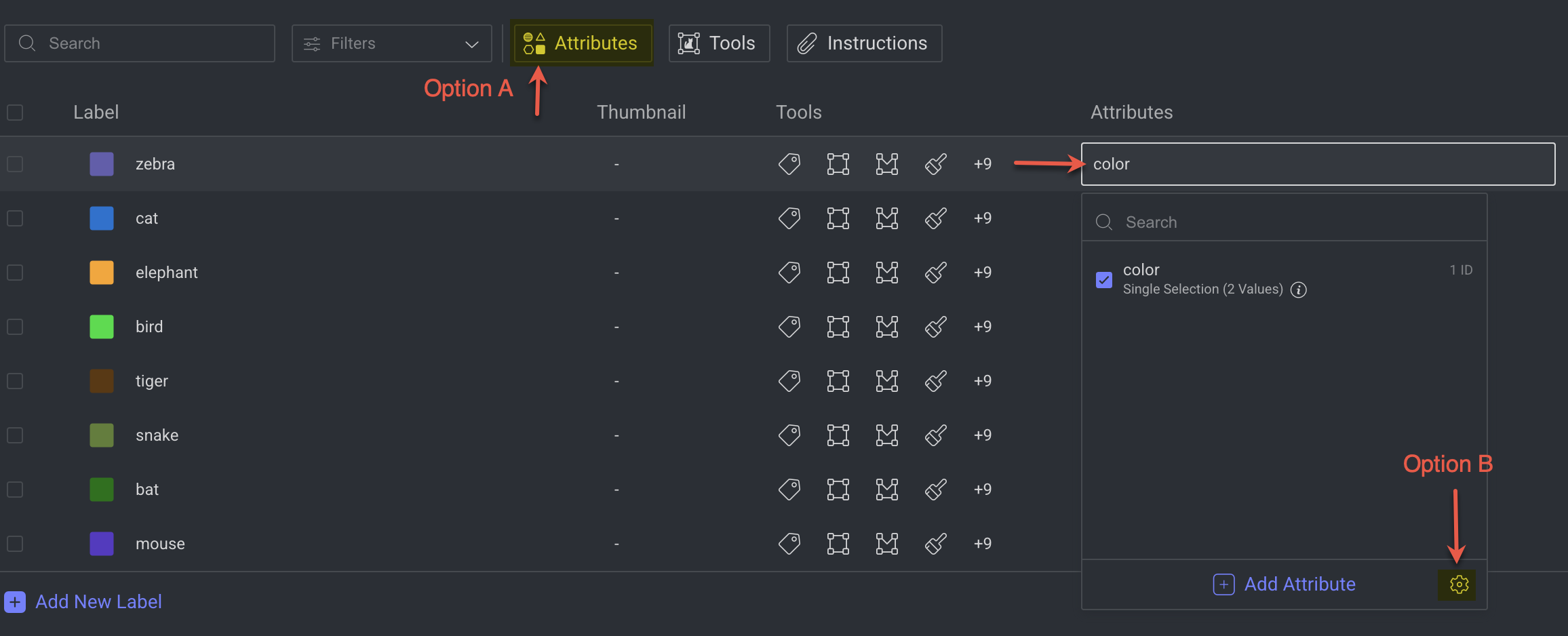
(Option A) To edit attributes regardless of label, click Attributes to open the Attribute Management page.
(Option B) To edit a specific label’s attribute, selec the label and click its attribute field. A dropdown panel is displayed.
Click on the Settings icon.
In the Attribute Management page, make changes to the following fields:
Attribute name
Add, update, or delete values
Update the Mandatory option
Modify the label list.
Delete Attributes
Go to the Recipes section.
Find and open the recipe.
Click Attributes. The attributes page is displayed.
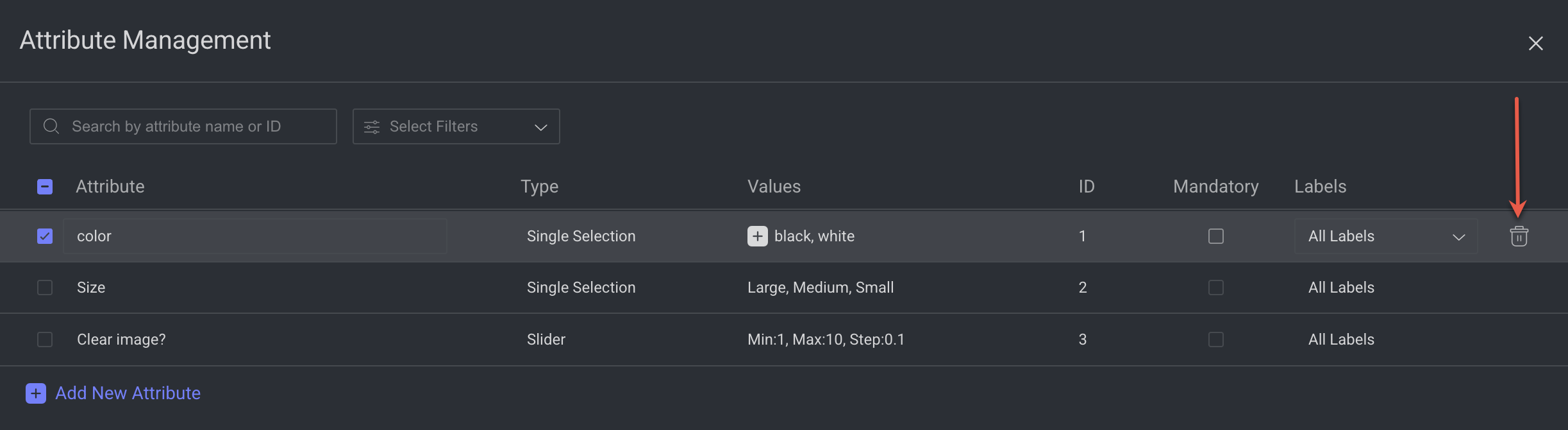
To delete a single attribute: Find the attribute and hover over, and click on the Trash icon displayed.
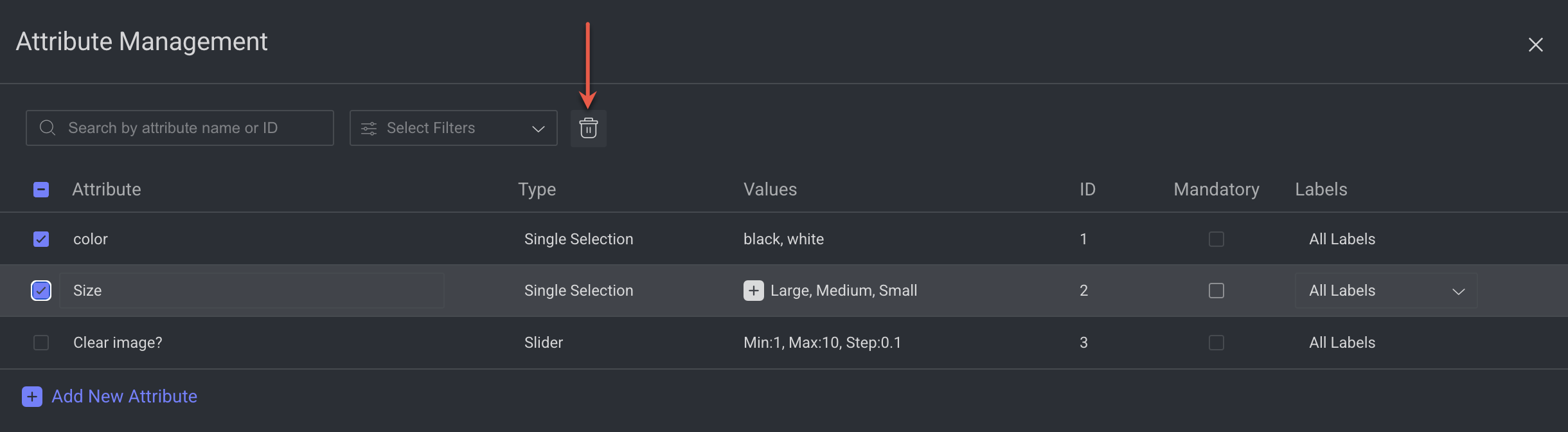
To delete multiple attributes: Select multiple attributes and click on the Trash icon displayed on the top-bar.
A confirmation message is displayed as
Deleting this attribute may effect active labeling or QA tasks.Click Delete.Click Done to close the window.
Click Save to save the changes.