When logged in with the Annotator role, you can access only the Tasks menu. Under this menu, two tabs are available: Assignments, where you view and work on your assigned tasks, and Issues, where you can track issues related to your assignments.
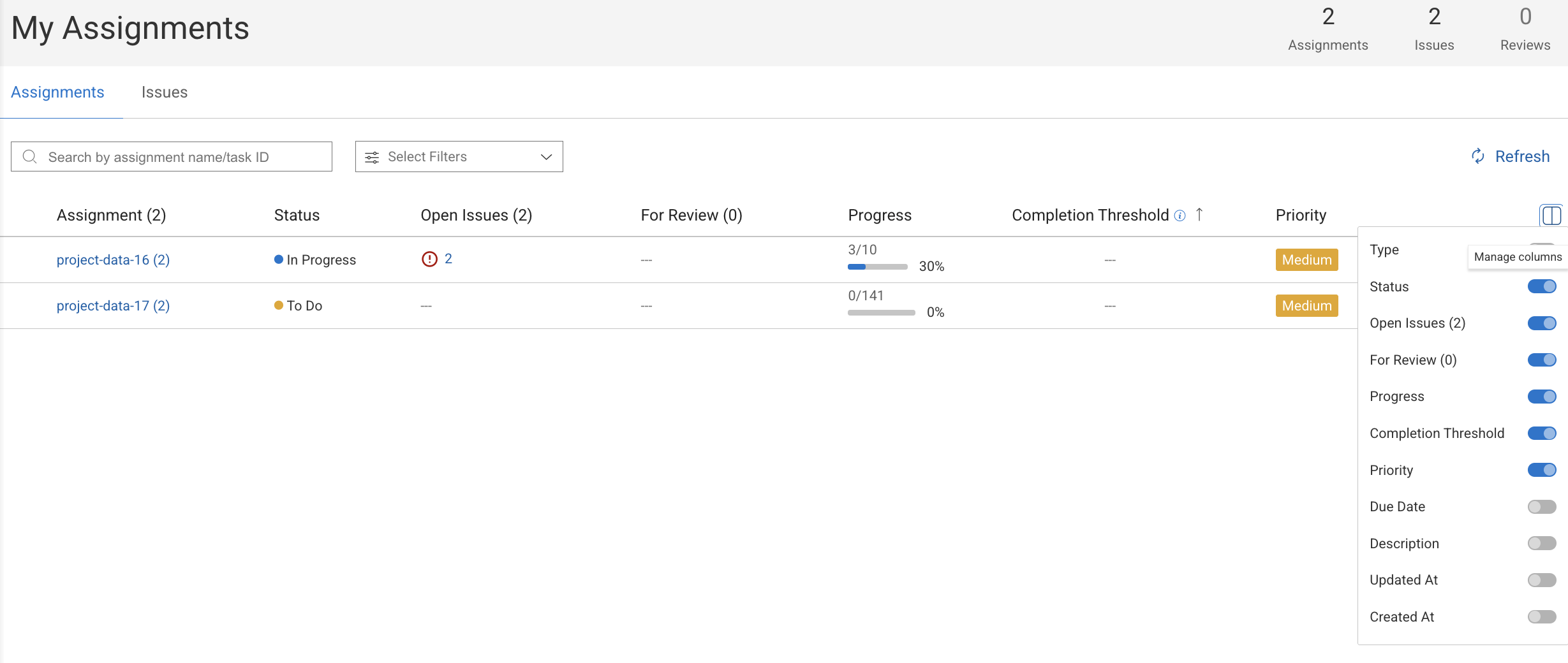
The Assignments tab displays all assignments allocated to you. It serves as your main workspace for tracking and accessing your labeling tasks.
What You Can Do From My Assignments
From this tab, you can:
Monitor your progress
Check assignment priority and deadlines
Identify open issues
Access the annotation interface to continue working
Assignment Details
My Assignments tab displays a table listing all assignments, with detailed information in each column. Clicking on an assignment's name directs you to its corresponding item's page. When filtered by username, the selection persists even after reloading or refreshing the platform.
Users: This displays the avatar of the assignment's users.
Assignments: This displays the name of the assignments. Click to open:
The Assignment Browser, if the
bulk classification modeis enabled in the recipe.Otherwise, use the Assignment actions -> Open Assignment Browser option. Use the Copy Assignment ID icon next to the assignment name to copy the Assignment ID.
The annotation studio, if the
bulk classification modeis NOT enabled in the recipe.
Type: Displays the task type; Labeling or QA.
Status: This displays the status of the assignments.
Completion Threshold: The minimum number of items annotator must complete.
Priority: This displays the assignments' with a High, Medium, or Low priority.
Progress: This displays the item's completion status.
Open Issues: This displays the number of items with annotations that have open issues.
For Review: This displays the number of items with annotations that have issues corrected for review.
Due Date: This displays the due date of the assignment.
Description: The description provided for the selected assignment's task. To add a description, click on the Edit icon. You can also use SDK to add or edit description.
Created At: This displays the assignment creation date, for example, Sep, 15 2023.
Updated At: This displays the assignment update date, for example, Sep, 15 2023.
You can customize the default columns and display additional fields by clicking Manage Columns.
Search & Filter Assignments
Search for tasks by assignment name, or task ID.
Apply filters to narrow tasks by criteria such as assignment status, task type, priority, or annotation status.
Filter tasks by assignment owner.
Time Tracking and Measurement
The Stopwatch feature allows annotators to accurately track the time spent on items within their assignments. This ensures that UI time measurements are consistent with Analytics, supporting both performance monitoring and customer reporting needs.
Time tracking is already captured in the user’s context; however, this feature introduces a clear, visible timer within the assignment interface. For each item, the timer is displayed independently of prior items and begins counting immediately when the annotator enters the item.
To enable, go to the recipes → Advanced Settings → Timing & Bonuses
Time Tracking: It allows you to show a stopwatch on the annotation studio when you work on a task where the recipe has enabled time tracking feature. It helps to count the UI time consumed by the annotator on the particular item’s.
Enable Time Measurement: This is mainly used when you want to control and incentivize annotation performance. It lets you define limits, bonuses, and timing-related values in your recipe, so annotation tasks can be monitored and rewarded fairly.
When Enabled
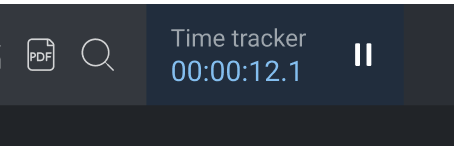
A stopwatch will automatically appear in the Annotation Studio for annotators when the recipe setting is enabled.
The timer starts only once the item is fully loaded.
It is displayed in all studio types where the setting is active.
Visible only to annotators, formatted as hh:mm:ss.
Pause Conditions
The timer automatically pauses under the following conditions:
The user navigates outside the studio or moves to another item in the assignment.
The annotator clicks the “Pause” button:
The studio will be blocked while paused.
Analytics counting will pause as well.
Paused state will not be preserved if navigating away; resuming will start automatically.
When a status is assigned to the item within the assignment context (item status change will also trigger an analytics activity event).
If the annotator’s browser window is closed or becomes inactive.
Resume Conditions
The timer resumes in the following cases:
The annotator clicks “Continue” in the paused state dialog.
The annotator reopens the item in the context of their assignment.
A status that was previously applied to the item is removed.
Start Annotating Items
Select the Assignments tab.
Find the Assignment from the list and hover-over.
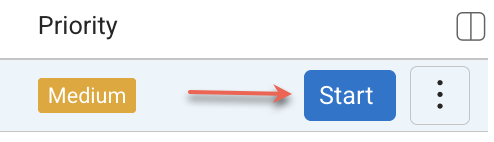
Click Start to start the working on the annotation. The Assignment View / Browser page is displayed.
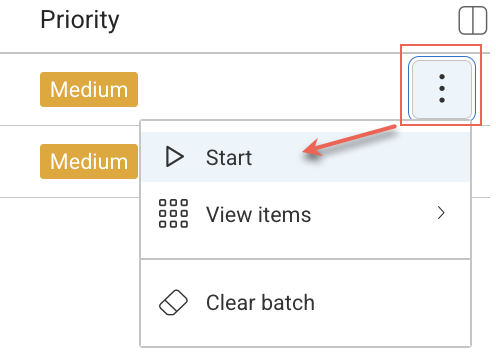
Also, you can click on the Three-Dots and select Start. The annotation studio will be displayed and you can start annotating items.
Select an item and right-click → select Open with → select the annotation studio from the list, and start annotating the item.
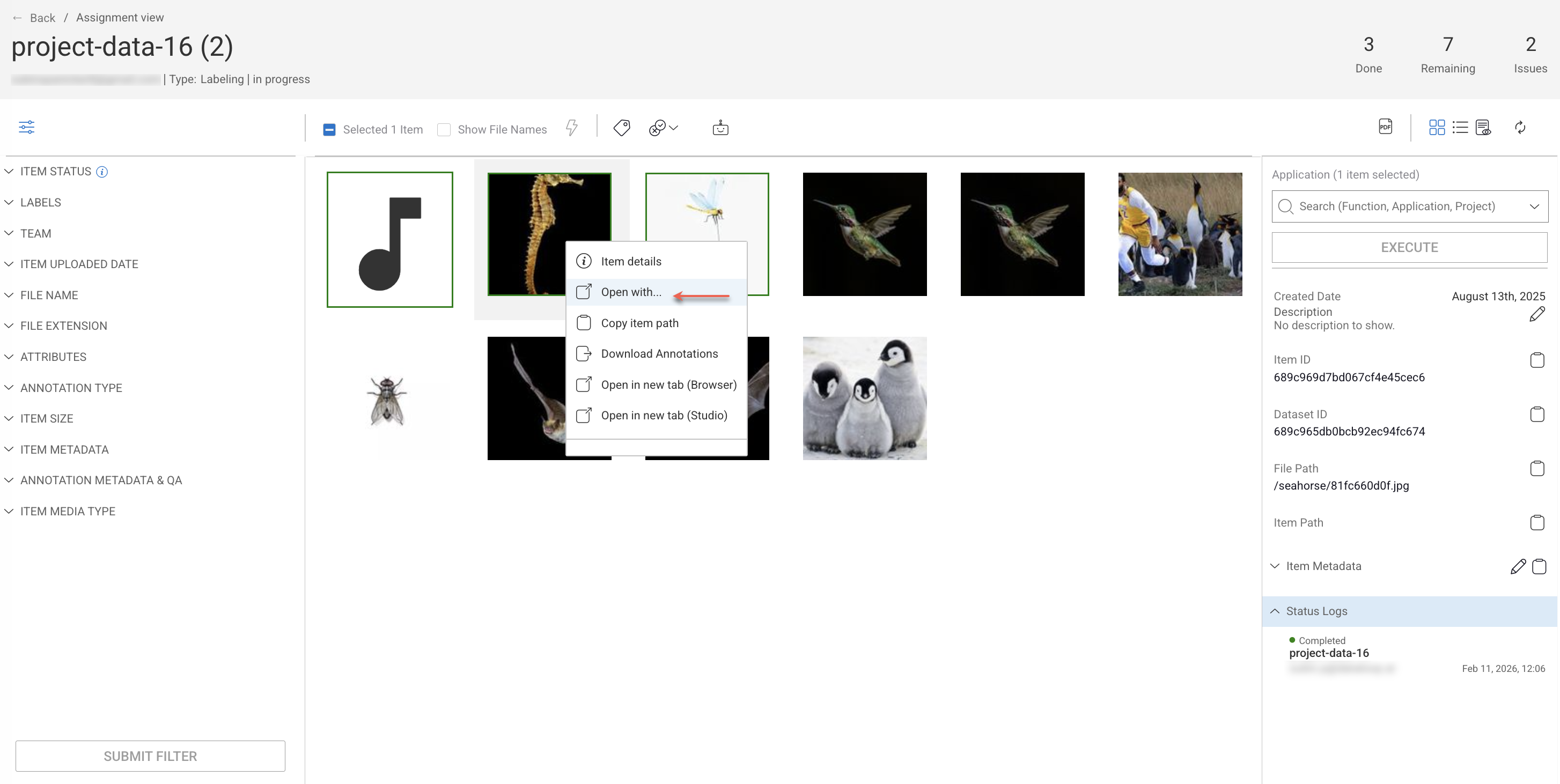
Open and View Assignment Details
Select the Assignments tab.
Click on the Assignment from the list. The Assignment View / Browser page is displayed.
View Assignment Items by Status
Annotators can view assignment items based on their status, such as All Assignment Items, Remaining (items to be completed), and Done (Completed)
Select the Assignments tab.
Find the Assignment from the list and hover-over.
Click on the Three-Dots → View Items, and select one of the following options:
All Assignment Items
Remaining
Done
The Assignment View / Browser page is displayed with items as per the previous selection.
Clear Batch Items
This allows you to clear the assignment batch of the tasks which are pulling tasks.
Select the Assignments tab.
Select the Assignment from the list where you want to clear the batch items, and hover-over.
Click on the Three-Dots → Clear Batch from the list. A confirmation message
Assignment batch is being cleared, please wait for confirmation.is displayed.
Load Batch Items
This allows you to load the assignment batch of the tasks which are pulling tasks.
Select the Assignments tab.
Select the Assignment from the list where you want to clear the batch items, and hover-over.
Click on the Three-Dots → Load Batch from the list. A confirmation message
Assignment batch is being loaded, please wait for confirmation.is displayed.