Clicking on a task opens the Task View page, where you can access the following information and options:
.png)
Task Name
Task Type: Labeling or QA
Task Status: Open, Complete, Discard, etc.
Due Date: The task due date
Lock indication: Displays whether the task is locked. This status can only be inferred from the UI when all examples (Locked/Unlocked) are available.
Task Details
Task Actions: Perform relevant task actions
Task Tabs: View Assignments, Items, Analytics, and Issues in separate tab views
Priority: Displayed as an icon below the task name (High, Medium, or Low). The priority icon is shown only if at least one task has a priority other than Medium (the default).
Summary Counters (Top Right)
These counters provide a quick overview of the task’s progress:
Progress – Shows the percentage of completed items
Remaining – Indicates the number of items left to complete
Total – Displays the total number of items in the task
Task Details
Task details available if you click on the Info (i) icon next to your task name:
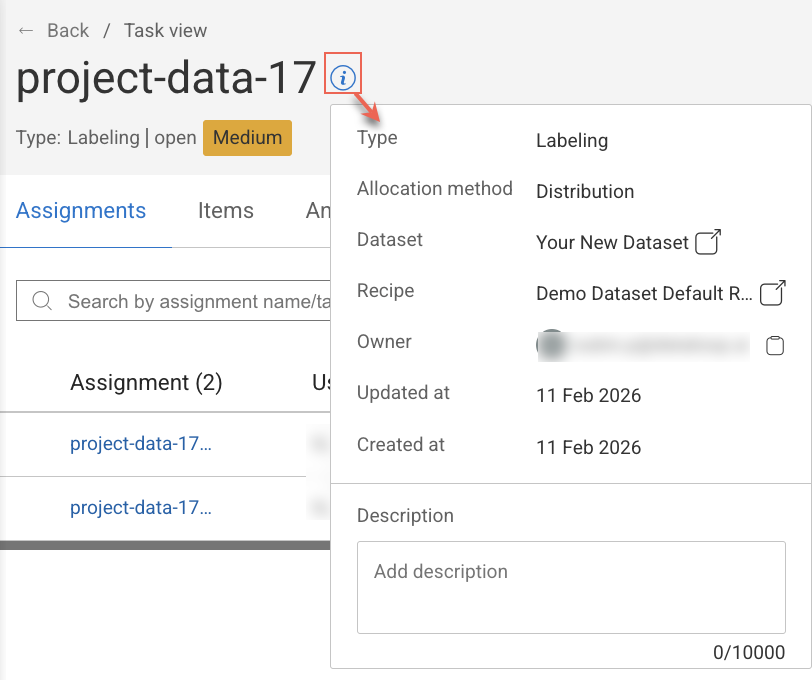
Type: This displays the task type; labeling or QA tasks.
Allocation Method: This displays the task allocation method - Distribution or Pulling type.
Dataset: This displays the name of the dataset used to create the task. You can click on it to view the Dataset browser page.
Recipe: The name of the recipe selected for this task.
Owner: This displays the email ID and avatar of the task owner.
Updated At: This displays the task update date, for example, Sep, 15 2023.
Created At: This displays the task creation date, for example, Sep, 15 2023.
Description: A field to add a description for the task, if required.
What is in a Task
When you click a task, Dataloop navigates you to the Task view page, where you can view the task’s Assignments, Items, Analytics, and Issues in seperate tab view.
Assignments Tab: This tab lists all assignments associated with the selected task. Assignments are part of a task and connect datasets to annotators by splitting data into manageable, trackable units of work and assigning them to specific team members.
Items Tab: The tab lists all the data items associated with the selected task.
Analytics Tab: This tab displays analytical data related to the selected task, such as progress and performance metrics.
Issues Tab: This tab lists all issues created during QA (Review) tasks that are associated with the selected task.
Task Actions
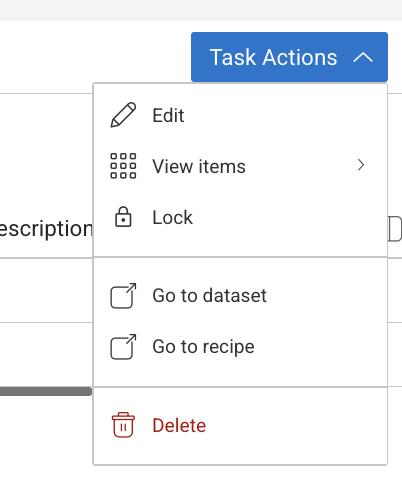
When you click Task Actions, you can perform the following actions:
Edit Tasks
Edit the task allows you to change task details, such as the assignees, due date, and more.
Open the Tasks page from the left-side menu.
Find and click the task. The Task view page is displayed.
Click Task Actions → Select Edit. The
Edit Taskpage will be displayed, indicating whether it originated from Pipeline or Labeling through the respective tag.
Workflow and Pipeline Tasks
You have the ability to modify tasks generated through Workflow (Labeling > Tasks) or Pipeline.
You can edit pipeline tasks even while the pipeline is running, and there is no need to pause the pipeline for editing.
Editing a pipeline task will result in the corresponding update within the pipeline.
Modify the available fields, for example:
General:
Task Name
Owner
Priority
Completion Due Date
Instructions: Recipe
Assignments:
Edit the Item Workload
Reassign
Click Save Changes.
View Task Items
This allows you to open and view items in the task browser page. You can view All Task Items, Remaining items to complete the labeling or QA, or Completed / Done items.
Open the Tasks page from the left-side menu.
Find and click the task. The Task view page is displayed.
Click Task Actions → Select View items, and select the following view options from the list:
All Task Items
Remaining Items
Done (Completed items).
Lock/Unlock Tasks
It allows annotation managers or above can lock or unlock a task for further modifications.
Open the Tasks page from the left-side menu.
Find and click the task. The Task view page is displayed.
Click Task Actions → Select:
Lock task to lock the task for further modifications. Locking this task will make all assignments read-only. No changes will be allowed, including status updates. A lock icon will be displayed.
Unlock task to enable for modifications. Unlocking the task will remove read-only mode, allowing updates that may impact the current export/training..
Open Task’s Dataset
It allows you to view the dataset details of a task.
Open the Tasks page from the left-side menu.
Find and click the task. The Task view page is displayed.
Click Task Actions → Select Go to dataset. It opens the Dataset Browser view.
Open Task’s Recipe
It allows you to view the recipe details of a task.
Open the Tasks page from the left-side menu.
Find and click the task. The Task view page is displayed.
Click Task Actions → Select Go to recipe. It opens the Recipe page.
Delete Tasks
Important
Deleting a task will permanently remove the task along with all associated assignments and QA tasks.
Open the Tasks page from the left-side menu.
Find and click the task. The Task view page is displayed.
Click Task Actions → Select Delete.