What is a Recipe?
In Dataloop, a Recipe serves as the foundational configuration for annotation tasks. It defines the structure, behavior, and guidelines for how data should be labeled across various domains. Recipes enable teams to standardize labeling processes, improve annotation quality, and accelerate the training of AI and ML models.
Recipes promote consistency and repeatability by ensuring that annotators follow predefined parameters aligned with the project’s goals.
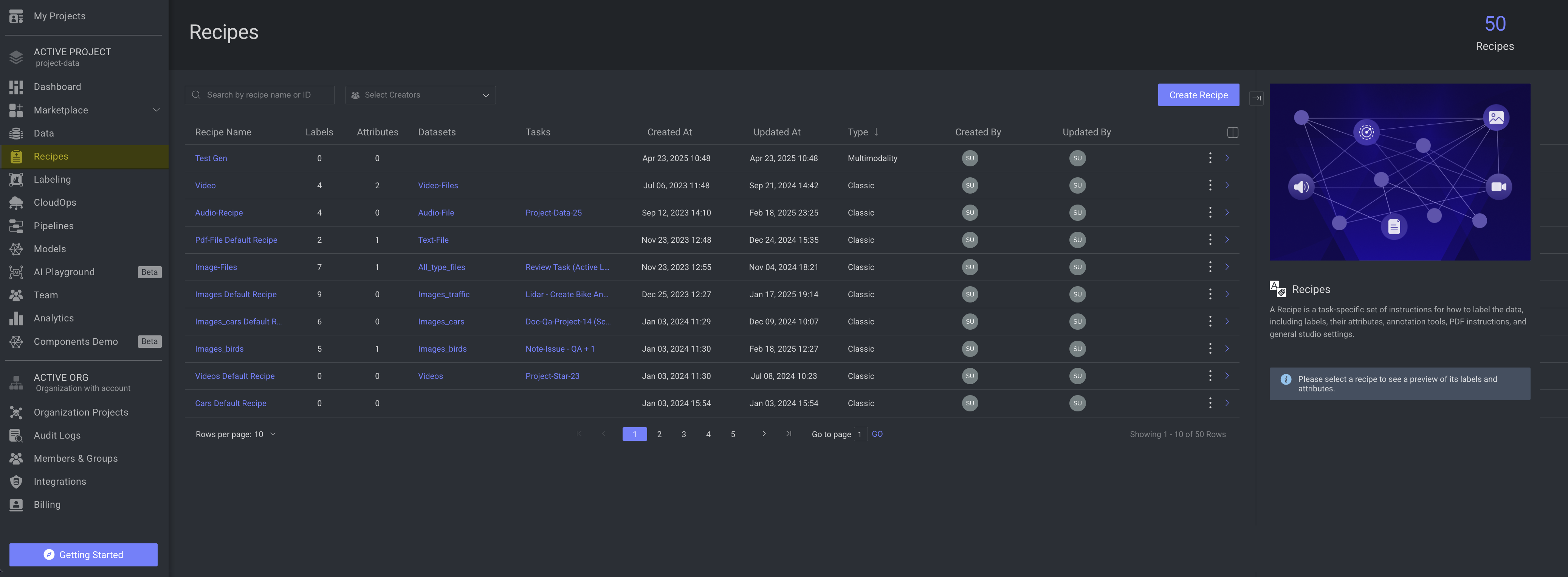
Recipe and Dataset Association
Every Dataset is linked to a single Recipe by default.
During dataset creation, users can:
Create a new Recipe (with the same name as the dataset), or
Link an existing Recipe to the new dataset.
This linkage ensures that the dataset has predefined labeling instructions from the outset.
Recipe and Task Configuration
Annotation and QA tasks derive their configuration from the linked Recipe.
By default, a task uses the recipe associated with the dataset from which its items originate.
However, users can override the default recipe during task creation or editing:
This enables the same data item to be annotated or reviewed under multiple recipes, each with distinct taxonomies or label structures.
Useful for multi-purpose evaluations, A/B workflows, or cross-domain annotation strategies.
Working with Recipes via SDK
Dataloop’s SDK allows developers to programmatically create, manage, and associate recipes within their pipelines.
You can define ontologies, attributes, tools, and task instructions via code.
Useful for automating dataset onboarding or syncing recipe configurations across projects.
To learn more, visit the Developers Guide on Recipes.
Types of Recipes
Recipe v1 (Legacy)
The Legacy Recipe is the earlier version of Dataloop’s recipe configuration tool. It provides all the essential components for defining how data is annotated — including ontology, annotation tools, attributes, and studio settings — but with the platform’s original interface and workflow.
While it remains available for compatibility and continuity, the new Classic Recipe offers a modernized design, improved usability, and enhanced management of labels, attributes, and tools. Users can still switch back to the Legacy Recipe when needed to maintain older project setups or workflows.
Classic ML Recipe
Classic ML is designed for traditional machine learning pipelines and structured data labeling workflows.
Best suited for:
Computer Vision (image classification, detection, segmentation)
Natural Language Processing (text classification, entity recognition)
Audio analysis (speech labeling, transcription)
3D/LiDAR data annotation
Features and Setup:
Define hierarchical labels and custom attributes
Configure annotation tools (bounding box, polygon, keypoint, etc.)
Set label colors, import/export labels from text files
Provide detailed PDF work instructions to guide annotators
Enable rule-based studio configurations to control labeling behavior
Fully compatible with SDK and automation tools for model-assisted labeling
GenAI / Multimodal Recipe
The Multimodal recipe is tailored for evaluating and managing responses from Generative AI models and multi-input annotation tasks.
Best suited for:
LLM-based workflows (prompt-response evaluation)
Image + Text alignment tasks
Multimodal data analysis
Features and Setup:
Start with ready-to-use templates or design a custom layout
Define input prompts, responses, and evaluation criteria
Customize interface for tasks like ranking, scoring, classification, or open-ended assessment
Support for integrating multiple data types (text, images, audio, etc.) within a single annotation flow
Ideal for prompt engineering, response quality benchmarking, and human-in-the-loop validation
Provide detailed PDF work instructions to guide annotators.
Create Recipes
Dataloop enables you to create tailored recipes based on your specific task type, offering support for both Classic ML and GenAI/Multimodal workflows.
.png)
Access Recipes
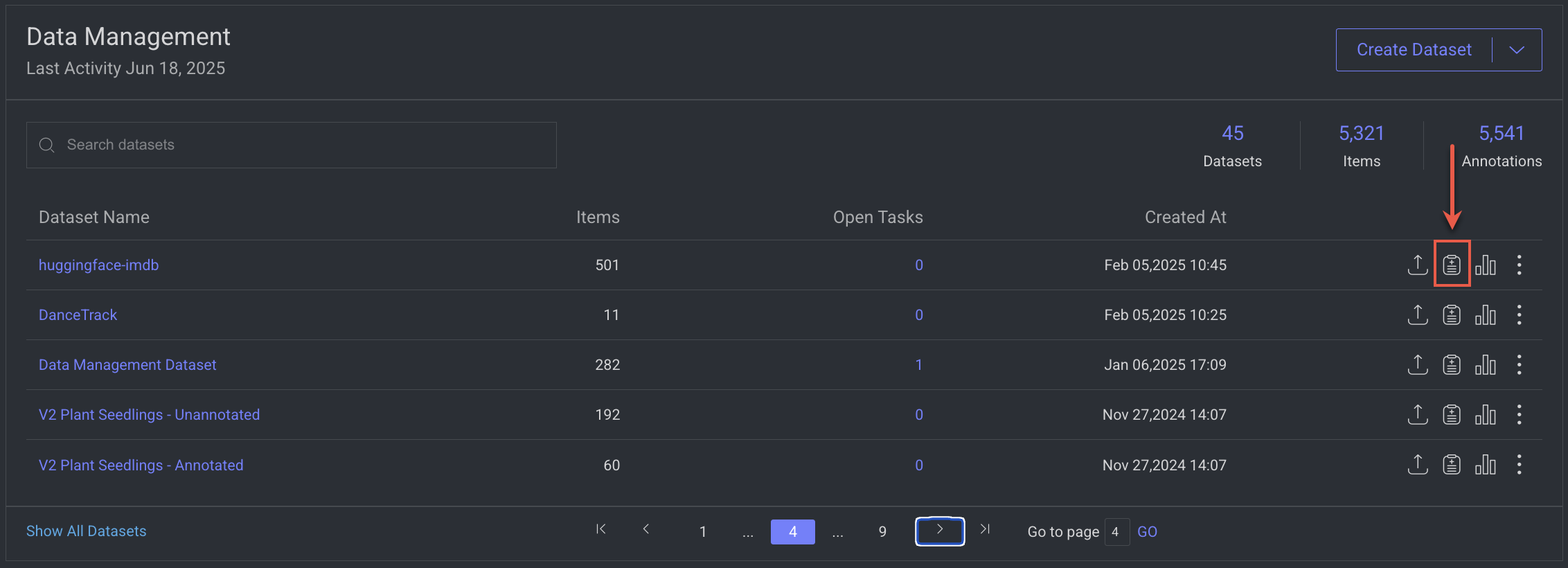
To open the recipe page for a specific Dataset, use one of the following options:
From the Project Dashboard:
In the Project Dashboard → Data Management table, click the Recipe icon for the selected Dataset.
From the Recipes menu:
Click on the Recipes from the lift-side menu.
Locate/search for the recipe from the list.
Click on the recipe.
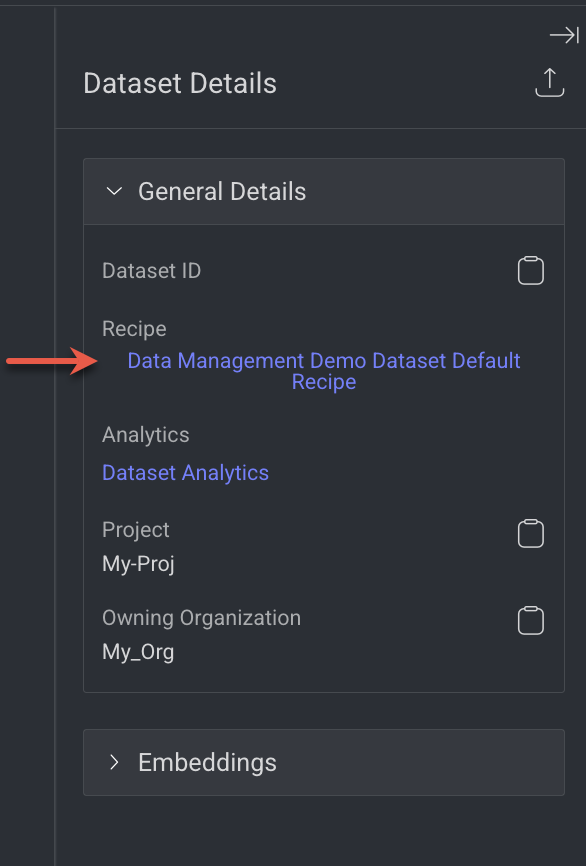
From the Dataset Browser:
Open the Dataset Browser.
In the right-side panel of Dataset Details, click on the recipe link from the Recipe field.
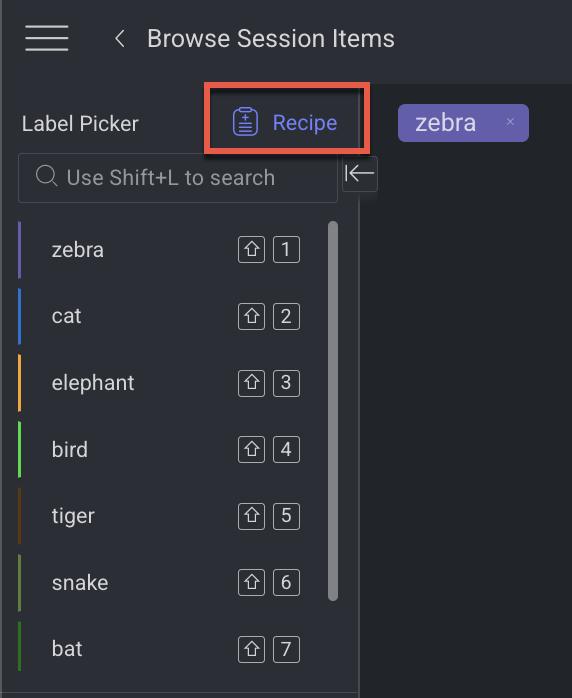
From Annotation Studios:
Click on the Recipe link above the label-picker section.
Permission
Only Annotation Manager or above can access from Annotation Studios.
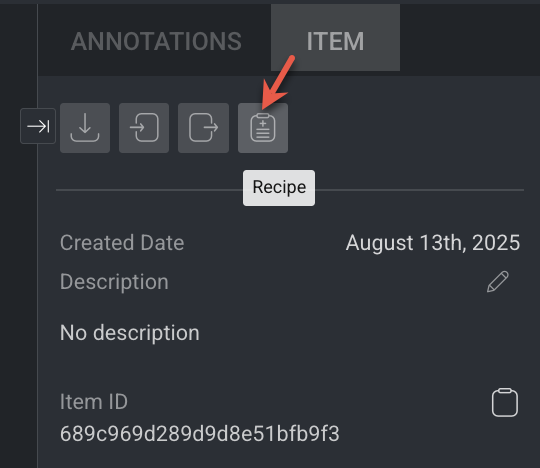
Or, select the Item tab from the right-side panel.
Click on the Recipe icon in the Item-Info tab,
View Preview of a Recipe
Click on the Recipes from the lift-side menu.
Locate or search for the desired recipe in the list.
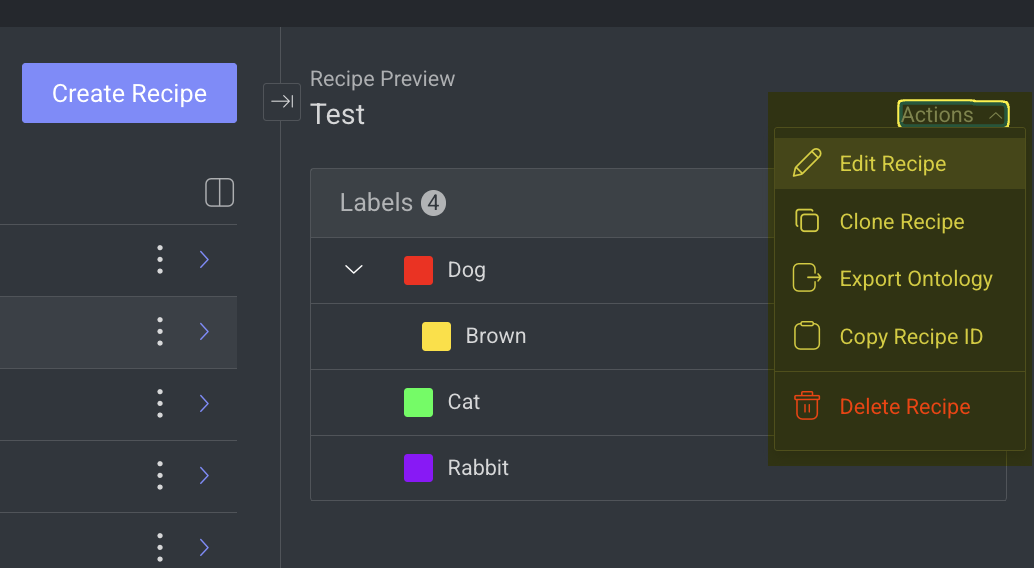
Select the recipe. A preview of the selected recipe will appear in the right-side panel, displaying its labels and attributes.
This page helps you to edit, export ontology, clone recipes, etc. used across your datasets and annotation projects.
Manage Your Recipes
Edit Recipes
Click on the Recipes from the lift-side menu.
Locate or search for the desired recipe in the list.
Click on the ⋮ Three Dots and select Edit Recipe from the list.
Make required changes and click Save.
Copy Recipe ID
Click on the Recipes from the lift-side menu.
Locate or search for the desired recipe in the list.
Click on the ⋮ Three Dots and select Copy Recipe ID from the list. The recipe ID will be copied.
Delete Recipes
Click on the Recipes from the lift-side menu.
Locate or search for the desired recipe in the list.
Click on the ⋮ Three Dots and select Delete Recipe from the list.
Click Delete to confirm. Deleting a recipe from a dataset will also remove it from any other datasets where it has been set as the active recipe.
Switch (or Change) the Recipe of a Dataset
To change the recipe linked from one dataset to another:
Click on the Data from the lift-side menu.
Locate or search for the desired dataset in the list.
Click on the 3-dots action button of a dataset entry (from either the project overview or the Datasets page).
Select Switch Recipe.
Select a different recipe from the list and approve.
Updating the Ontology with a Label Thumbnail Using the SDK
The following code snippets demonstrate how to add a new label with a thumbnail and how to update an existing label to include thumbnail display data using the Dataloop SDK.
Adding a Label with a Thumbnail
import dtlpy as dl
dataset = dl.datasets.get(dataset_id="65f82c9fc26fd1bc97ea9915")
ontology = dataset.ontologies.list()[0]
ontology.add_label(label_name='dog', color=(34, 6, 231), icon_path=r"C:\Datasets\Dogs\dog.webp")
Updating an Existing Label with a Thumbnail
import dtlpy as dl
dataset = dl.datasets.get(dataset_id="65f82c9fc26fd1bc97ea9915")
ontology = dataset.ontologies.list()[0]
# Add label if not already existing
ontology.add_label(label_name='dog', color=(34, 6, 231), icon_path=r"C:\Datasets\Dogs\dog.webp")
# Create a label object with display data
label = dl.Label(tag='dog',
                 display_label='dog',
                 display_data={'displayImage': {'itemId': '65fa86e310864a269c607064',
                                                'datasetId': "65f82c9fc26fd1bc97ea9915"}})
# Update the label in the ontology
ontology.update_labels(label_list=[label], update_ontology=True)